Pair Afina browser work with a real cloudf.one phone
How to pair Afina browser profiles with a cloudf.one phone workflow
A combined Afina and cloudf.one workflow means assigning desktop browser tasks to isolated Afina profiles and native mobile app tasks to a real remote Android phone. Teams use the arrangement to keep web consoles, cookies, and proxies separate while handling app actions on actual phone hardware. The risks are duplicated logins, confused ownership, incompatible automation, and the false assumption that either tool can replace the other.
The useful integration isn’t a hidden technical connector. It is a clear division of work. Afina browser profiles are suited to browser based dashboards, research, advertising consoles, and repeatable web tasks. cloudf.one rents access to a physical Android phone controlled through a browser. Its current service includes 15 installed apps and a subscriber device priced at $50 per month. The phone handles native app behavior that a desktop Chromium profile can’t reproduce.
That boundary matters. Afina can change a browser User Agent and screen values, but it can’t run an Android package or generate real mobile sensor signals. cloudf.one can run TikTok, Instagram, Snapchat, WhatsApp, and other Android apps, but its terms forbid botting and automation scripts on the device. Trying to force either product into the other’s role creates the exact failures this workflow is meant to avoid.
Start with the task, not the account
Before creating profiles, list every action the team performs. Mark each action as web only, native app only, or shared. Meta Ads Manager and Google Ads are natural desktop tasks. Posting through a native TikTok app belongs on the phone. Reading a campaign report may work in both places, but choosing one approved route prevents simultaneous sessions that look unrelated.
Consider a small agency with five client brands. Its staff review campaign data, download invoices, approve copy, post short videos, and answer comments. A weak setup gives every employee every login and lets them choose any device. A better setup assigns one owner, one tool, and one normal time window to each action.
Our own cloud phone vs antidetect browser comparison describes a familiar failure with Android emulators. An app can initially run, then later detect implausible accelerometer values, battery data, or hardware strings. A desktop antidetect browser doesn’t solve that native app problem because the app isn’t running inside the browser. A real phone removes the emulator layer, and the signals that give an emulator away are covered in real device vs emulator detection. It still doesn’t excuse policy violations or reckless account behavior.
Build the Afina side for desktop work
Create one Afina profile for each browser identity that must remain separate. Each profile uses its own local directory. Cookies, cache, localStorage, and IndexedDB don’t overlap with other profiles. Give the profile a clear name that refers to the client and function, not the password or a personal detail.
Next, assign an IPv4 proxy appropriate for the account’s normal location. Afina supports HTTP, HTTPS, and SOCKS5. It has no bundled proxy pool, so the connection must come from a separate provider. Check the visible address before the first login, and don’t install a VPN extension inside the profile because it can override the proxy route.
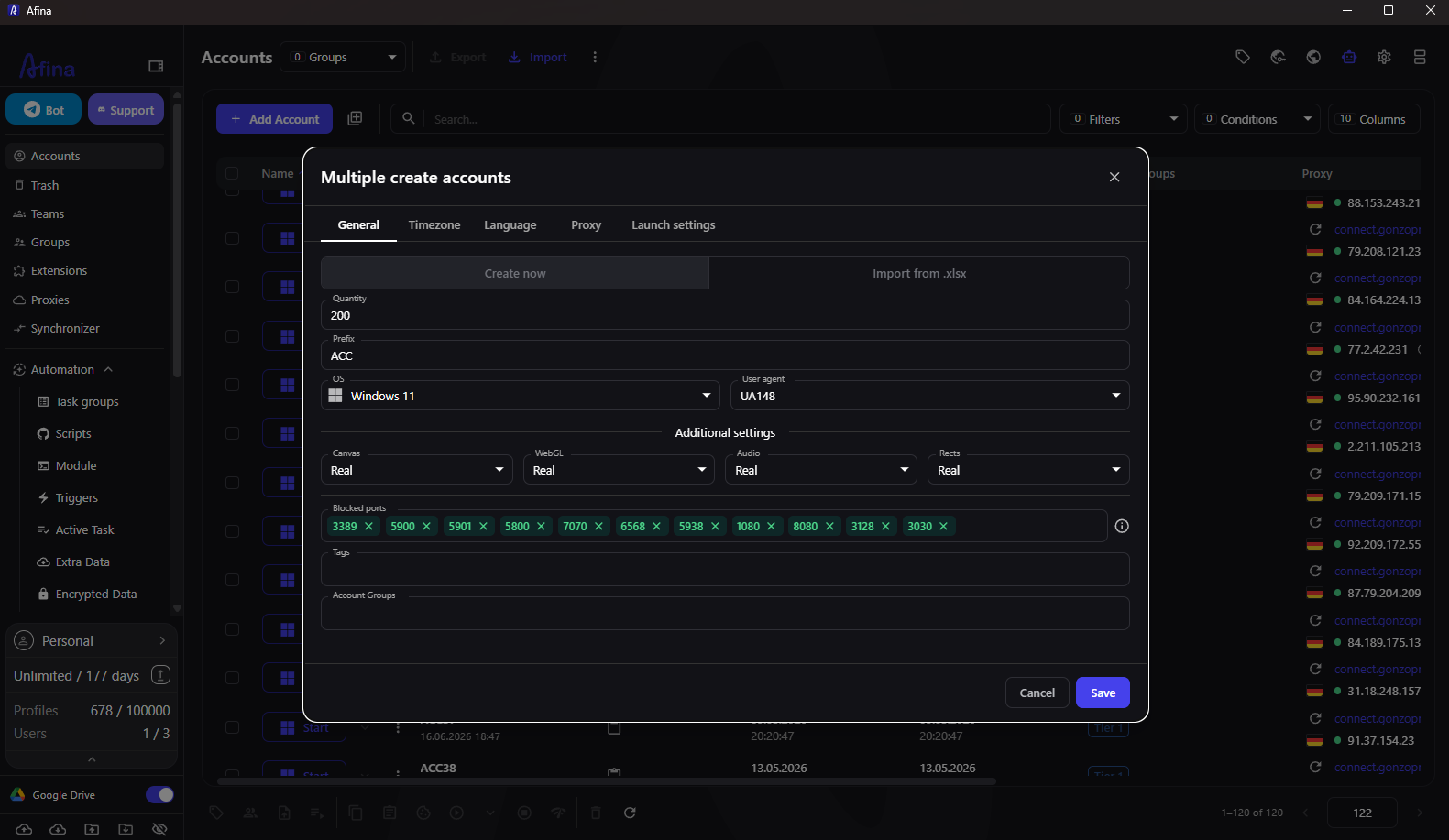
Configure the fingerprint conservatively. Afina exposes Canvas, WebGL, Audio, Rects, User Agent, CPU, memory, and screen settings. More changes aren’t automatically better. Keep the profile plausible and stable across sessions. If the proxy location and browser timezone disagree, use Timezone from IP and Languages from IP to reduce the mismatch.
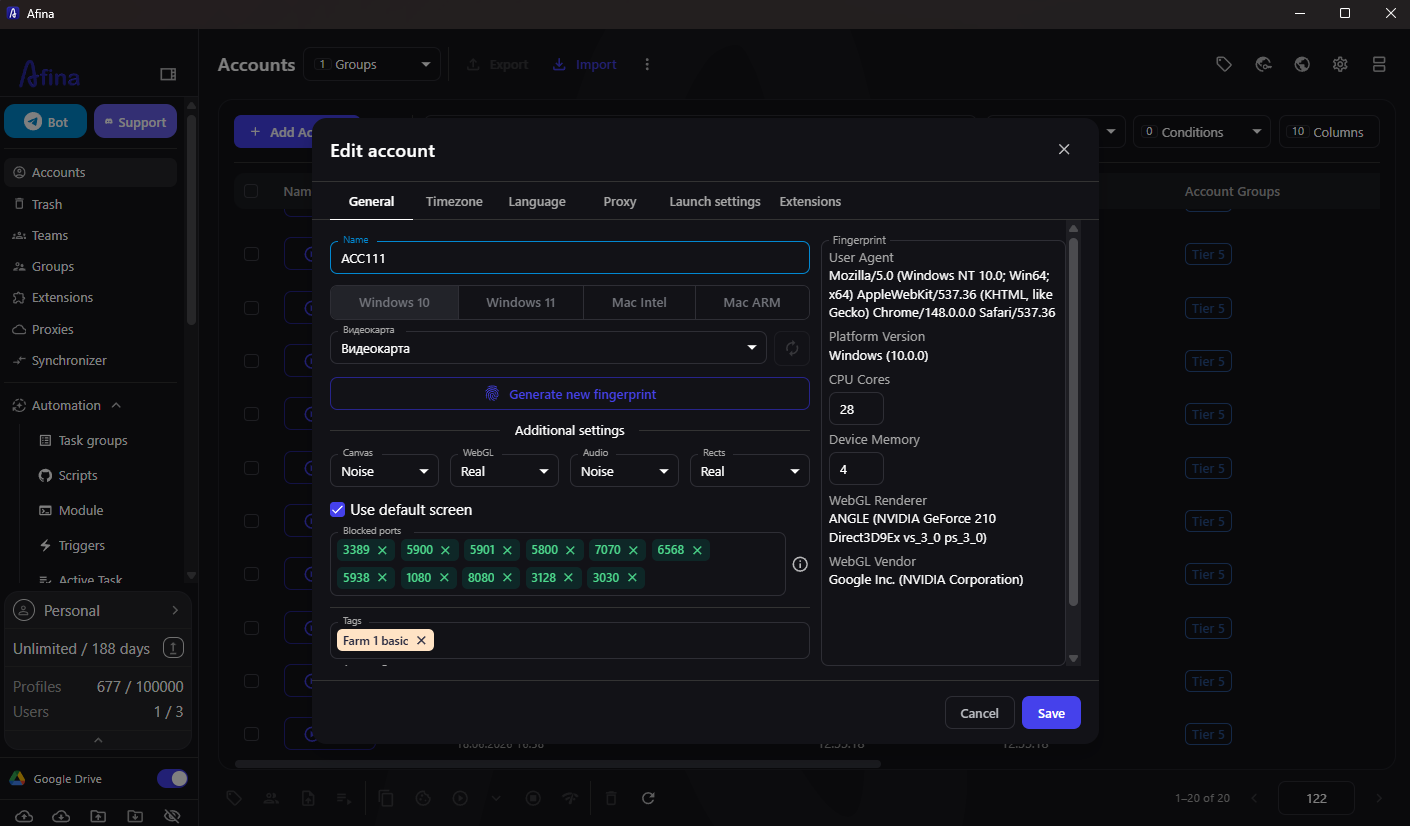
The screen below shows bulk profile creation with fingerprint controls. It also shows why this step needs judgment. The interface offers many controls, but an operator shouldn’t change every value simply because the option exists.
Afina’s product claim for this part of the workflow is straightforward: it keeps browser identities and their local data isolated in one desktop workspace. That helps with organization and accidental crossover. It doesn’t guarantee that a platform will accept every account or action.
Prepare the cloudf.one phone as a separate lane
Treat the cloudf.one phone as its own device, not as a visual extension of an Afina profile. During the free 24 hour trial, cloudf.one provides a freshly wiped phone. A subscriber phone is dedicated and remains logged in. Decide which native app account belongs there before entering credentials.
cloudf.one lists TikTok, Instagram, YouTube, Facebook, X, Threads, Snapchat, Pinterest, LinkedIn, Xiaohongshu, Lemon8, Telegram, WhatsApp, Messenger, and Chrome among its installed apps. That fixed catalog covers common social work, but it is also a compromise. A special app may require a request to support, and the service doesn’t promise that every third party app or destination will always work.
There are stricter limits. cloudf.one says users can’t run botting or automation scripts, alter CPU or system settings, or use the phone number for SMS verification or calls. Its terms also state that applications and destination domains may be monitored for abuse prevention. Teams handling sensitive client work should review that policy before logging in.
Use the native phone only for the approved app actions. Don’t open the same account in an Afina profile at the same time unless the platform and your internal policy permit that access pattern. The goal is a stable division of work, not maximum activity.
Connect the two lanes with an operating record
The bridge between products should be a simple operating record. It can live in the team’s approved project system and should name the account owner, Afina profile, cloudf.one device, allowed actions, normal hours, and last credential change. Don’t store passwords in the record.
For example, one line might say that profile CLIENT7 ADS handles desktop reporting, while phone CLIENT7 SOCIAL handles publishing and app comments. Another line can reserve profile CLIENT7 REVIEW for public page checks without an authenticated session. The names make handoffs readable and reduce accidental reuse.
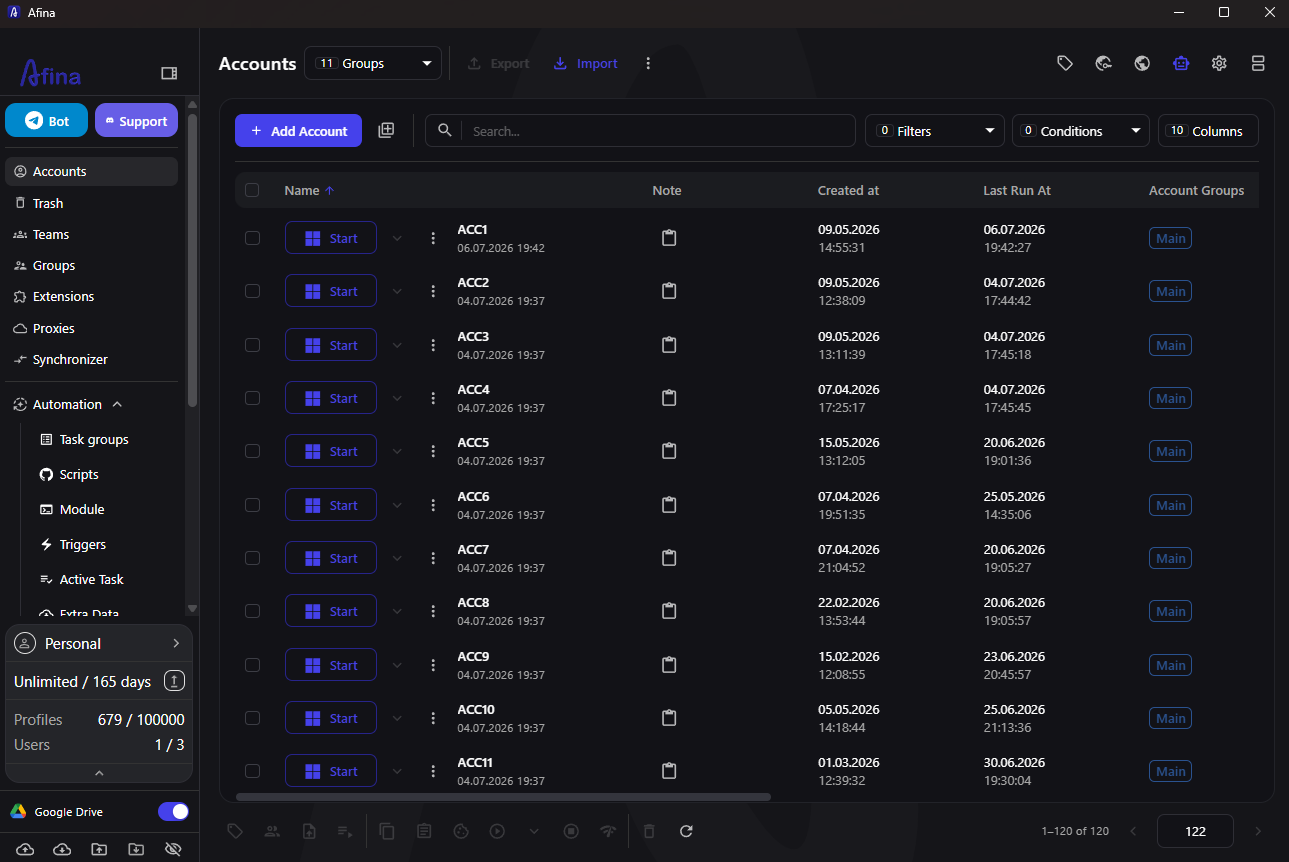
Afina’s Accounts screen supports this discipline by showing profile names, groups, creation dates, and last run times in one place. Keep groups aligned with clients or workstreams rather than with individual employees.
Create a handoff rule for media and decisions. A content manager can prepare approved text and files on the desktop. The phone operator can publish through the native app. Results such as post URL, time, and approval status return to the project record. Avoid copying session cookies between the browser and phone. They represent different environments and merging them defeats the separation.
Know the cost and performance tradeoffs
cloudf.one charges per physical phone, so ten subscriber devices at the current $50 monthly price equal $500 per month. That is expensive compared with opening ten browser profiles. But the comparison is incomplete when the task genuinely requires a native app. Paying less for an emulator that later fails a platform check can cost more in staff time and account recovery.
Afina scales browser identities more economically, but active profiles consume workstation resources. Each running Chromium profile typically uses about 300 to 500 MB of RAM before heavy pages or extensions add more. Ten profiles can therefore consume roughly 3 to 5 GB. A computer without enough memory or CPU will become the bottleneck.
Afina also requires setup discipline. It uses a master password and local encryption key. If both are lost, support can’t recover the encrypted data. Teams working across several computers must use the same correct key file and master password. A mismatch can prevent decryption and may clear cookies when a profile launches.
Neither tool removes platform risk. Afina’s documentation states that account safety still depends on proxy quality, operator behavior, and the platform’s own controls. cloudf.one provides real hardware, but its terms don’t guarantee uptime or success with a particular app or destination. Honest planning includes both facts.
Run a seven day pilot
Don’t migrate a whole client roster on day one. Choose one brand, one browser profile, one phone, and two operators. Define a seven day pilot with normal work rather than artificial stress tests.
-
Record the approved desktop and app actions
-
Confirm the Afina proxy and browser location before login
-
Log into the native account on the dedicated cloudf.one phone
-
Avoid simultaneous access from both lanes
-
Record challenges, forced logouts, slow sessions, and handoff mistakes
-
Review RAM use, phone cost, and staff time at the end of the week
A successful pilot isn’t one with maximum volume. It is one where staff can explain which tool owns each action, where credentials live, and what to do when a session fails. If users keep improvising, revise the operating record before adding more accounts.
The most common failure is conceptual. A team buys a real phone, then continues running mobile work in browser profiles because it feels faster. Another team buys an antidetect browser, then expects it to reproduce native Android telemetry. The combined workflow works only when each product keeps the job it was built to perform.
Promo code SALE20 gives new users 20% off all plans except Max.
Promo code SALE30 gives new users 30% off the Max plan.
FAQ
Can Afina run the apps installed on a cloudf.one phone?
No. Afina is a desktop Chromium based browser and can’t run native Android packages. cloudf.one supplies the real phone environment for those apps.
Should the same account be open in both tools?
Only when the platform rules and the team’s operating policy allow it. Avoid simultaneous sessions by default because the two environments can present different network and device signals.
Can Afina automate actions on the cloudf.one phone?
This guide doesn’t connect Afina automation to the phone. cloudf.one explicitly prohibits botting and automation scripts on its devices, so keep phone actions manual and compliant.